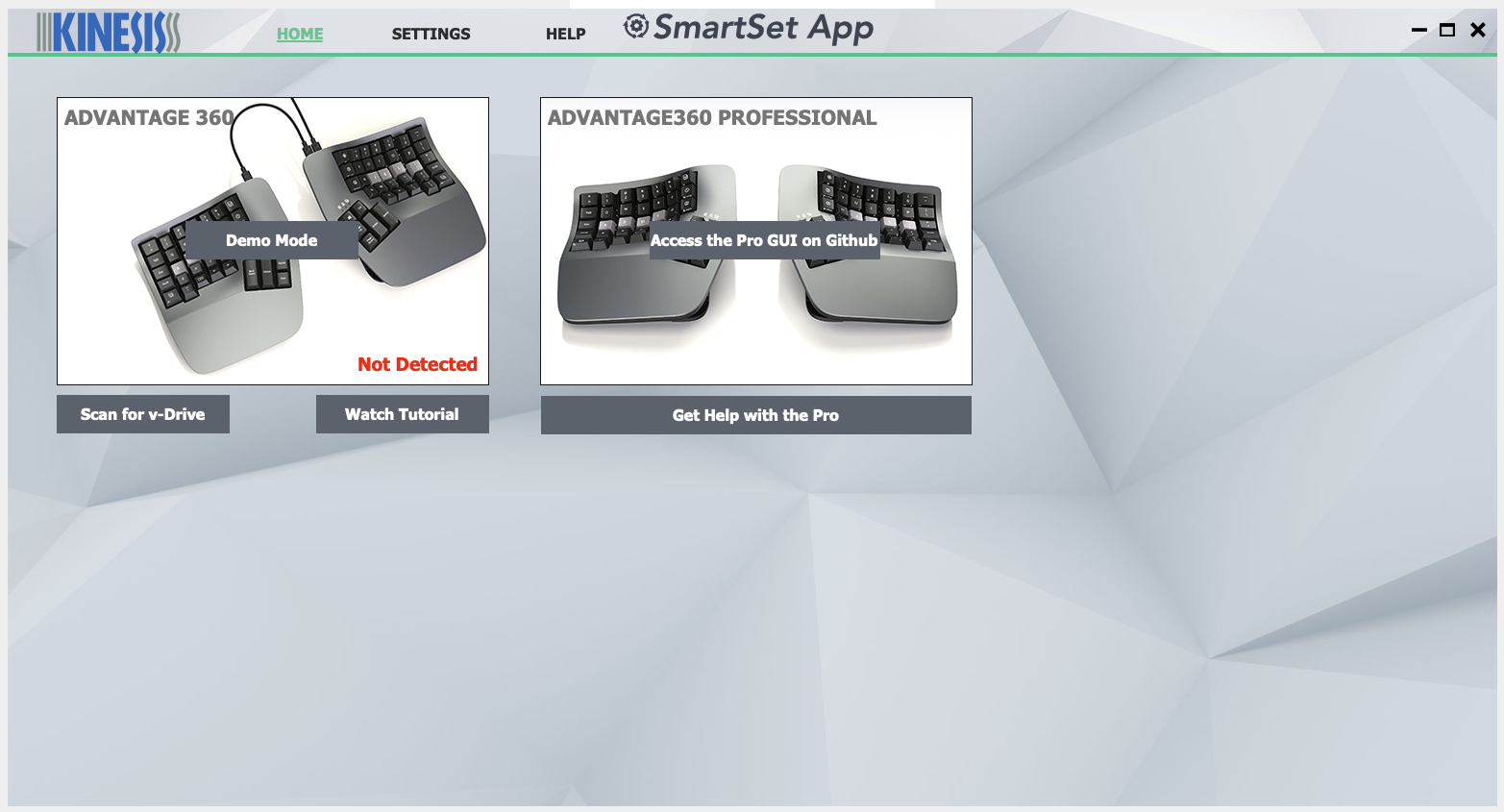
If your Kinesis Advantage 360 suddenly stops being recognized by the SmartSet App, the cause is likely V-Drive corruption.
The SmartSet App shows “Not Detected” for the Advantage 360, and clicking “Scan for v-Drive” produces a “v-Drive not detected” error—even though the v-Drive is active.
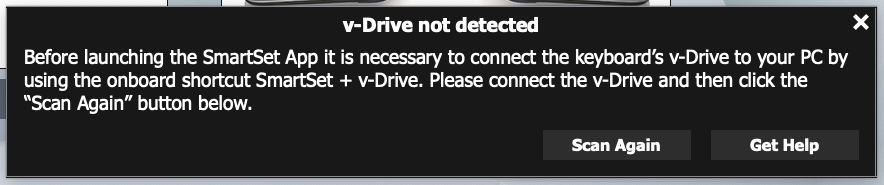
The V-Drive is a small virtual drive on the keyboard that stores your layout configurations. It cannot corrupt itself, but several external factors can damage it:
Expansion devices (hubs, docks, switches) — Communication interruptions during the keyboard’s enumeration sequence can corrupt the V-Drive.
Improper ejection — Disconnecting or dismounting the V-Drive without ejecting first.
Software scans — Security software, encryption tools, or backup programs scanning the mounted V-Drive can leave behind hidden files that disrupt operation.
Reformatting the V-Drive resolves the corruption. Note that this will erase your custom layouts—back them up first if you can still access them.
Press SmartSet + Ctrl + Shift + R and wait 20 seconds
for the format to complete.
Unplug the keyboard, then plug it back in.
Mount the V-Drive with SmartSet + HK3, then rename it to
ADV360.
If you have a backup, copy and paste the text from your backup into
the desired layout.txt file. Replace all existing text,
then save and close.
Alternatively, open the SmartSet App, make your layout changes, then save and close.
Eject the V-Drive properly, then dismount with
SmartSet + HK3.
To avoid future corruption: